You need a picture of a page in a ClickUp task, maybe a bug on a live site or a competitor's pricing table. The slow way is to take the screenshot, find it in Downloads, open the task and drag it in.
2 browser extensions skip that. One is ClickUp's own. The other is Save to ClickUp, which we make. They don't capture the same things, so here's which one to use for which job, checked against ClickUp's own help page and store listing on 13 November 2026.
Visible, full page or area: who captures what
| ClickUp's Chrome extension | Save to ClickUp | |
|---|---|---|
| The visible tab | Yes | Yes |
| A full page, scrolled top to bottom | No | Yes |
| An area you drag | Yes | No |
| Markup on the image (draw, shapes, notes, blur) | Yes | No |
| Where the image goes | A task, a task comment, or a download | A new task, with the page title, URL and article text |
| Browsers | Chrome only | Chrome, Firefox and Edge |
| Price | Free on every ClickUp plan | Free |
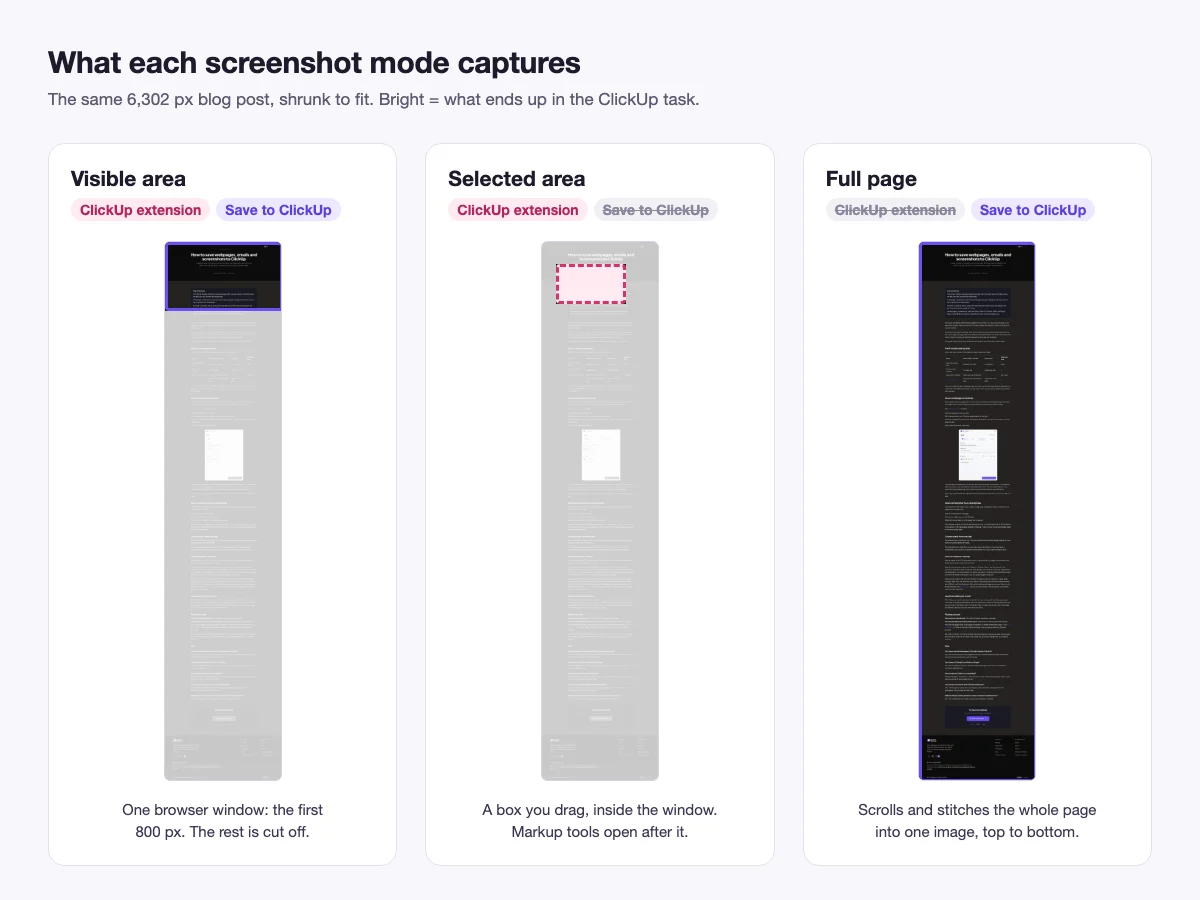
ClickUp's help page puts the limit plainly: "The screenshot feature will only capture information within your browser window." So a long page gets cut off at the bottom of your screen. That's the gap we built the full-page mode for.
Take a full-page screenshot into a ClickUp task
Use this when the page is longer than your screen, like a whole landing page or a long pricing table.
- Install Save to ClickUp and sign in with your ClickUp account.
- Open the page and click the extension icon. The side panel opens on the Webpage tab.
- Pick the workspace and the list. It remembers the last list you used.
- Next to Screenshot, click Full page. The extension scrolls to the bottom and stitches the parts into one image. A preview shows up in the panel, and you can retake or delete it.
- Click Save to ClickUp.
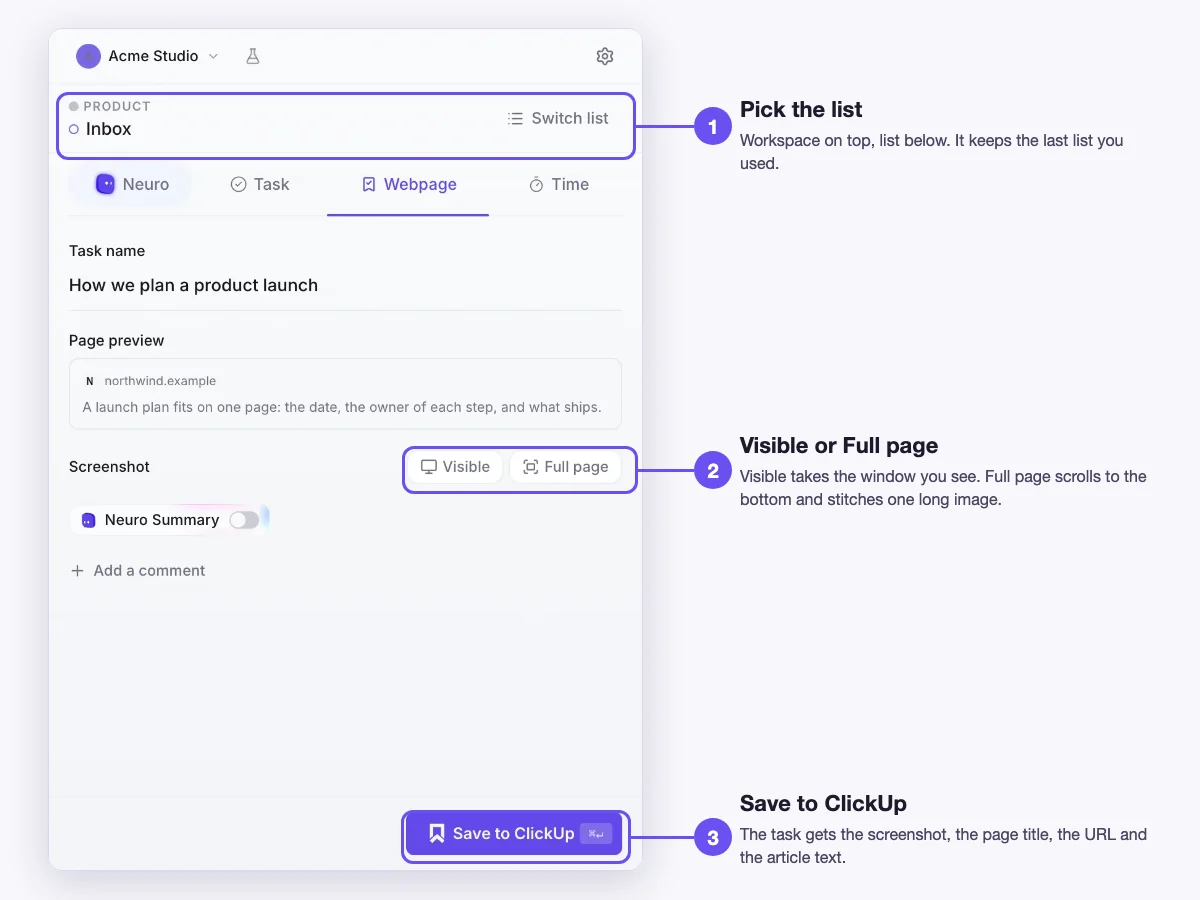
The task gets the screenshot as a JPEG, plus the page title, the link and the article text without menus or ads. The extension shrinks a capture wider than 1,600 pixels to that width, which keeps text readable and the file small. The extension hides its own panel during the capture, so it doesn't show up in the picture.
Take a screenshot of the visible tab
Same steps, but click Visible instead of Full page. It's one capture with no scrolling, so it's instant. Both extensions do this one, so use whichever you already have.
If you don't want the page saved, only a quick task with an image, the Task tab in the same panel has a name, a description and the same 2 screenshot buttons.
Capture an area and mark it up
Save to ClickUp can't do this yet. ClickUp's own extension can, on Chrome:
- Install ClickUp's extension from the Chrome Web Store and pick your workspaces.
- Click the ClickUp icon and open the Screenshot tab.
- Capture the whole window, or drag a box around the part you want.
- Mark it up. The listing names a paintbrush, shapes, notes, a tool that hides an area, and numbered markers.
- Attach it to a task, or open a task and add it to a comment. You can also download it.
Its store listing reads 1.9 out of 5 from 385 ratings, with 200,000 users, and ClickUp last updated it on August 25, 2025. Both extensions run side by side without clashing, so you can keep ClickUp's for marked-up crops and ours for full pages.
Mark up a full-page screenshot inside the task
There's a third route if you need a full page and notes on it. Save the full page with Save to ClickUp, open the task, and click the image in the task's Activity section. ClickUp's Proofing feature lets you click any spot on it and leave a comment pinned to that spot, and you can assign that comment to a teammate.
Proofing works on PNG, GIF, JPEG and WEBP files, so the JPEG from Save to ClickUp works. Free Forever and Unlimited plans get 100 uses, Business and up get unlimited, and Core gets a trial (ClickUp help, checked 13 November 2026).
For a bug report, that's often better than drawing on the image. You can assign a pinned comment to whoever fixes that part, and the thread stays in the task.
Pick the extension by the job
- A crop with arrows and boxes on it, in Chrome. ClickUp's extension.
- A whole page, or anything in Firefox or Edge. Save to ClickUp.
- A whole page with notes for a teammate. Save to ClickUp for the capture, then Proofing in the task.
If you also save articles and emails to ClickUp, our guide to saving webpages, emails and screenshots to ClickUp covers the other routes.
FAQ
Can ClickUp take a full-page screenshot?
Not with ClickUp's own Chrome extension. Its help page says the screenshot only captures what's inside your browser window. Save to ClickUp has a Full page button that scrolls and stitches the whole page into one image.
How do I attach a screenshot to a ClickUp task?
With an extension, the screenshot goes into the task when you save, so there's no file to upload. Without one, take the screenshot with your computer's tool and drag the file into the task.
Can I annotate a screenshot in ClickUp?
Yes, 2 ways. ClickUp's Chrome extension has markup tools before you attach. After an image is in a task, Proofing lets you pin comments on any spot of it.
Does the ClickUp screenshot tool work in Firefox or Edge?
ClickUp's help page says its extension is only for Google Chrome. Save to ClickUp runs on Chrome, Firefox and Edge.
Is Save to ClickUp free for screenshots?
Yes. Screenshots, saved pages, tasks and time tracking are free. Neuro, the AI assistant, costs money once its free credits run out.