You found something worth keeping. Maybe it's an article, or a bug on a live page, or an email from a client. Now you want it in ClickUp, filed in the right list, without 5 minutes of copy and paste.
There are a few ways to do that. They don't all save the same thing. Some keep only the link. Some keep the page itself. That difference decides whether the task is still useful next month, when the article sits behind a paywall or the page has changed.
This guide covers each route, what lands in the task, and how many clicks it takes.
The 4 routes side by side
Here's the short version. The details for each route come after.
| Route | What lands in the task | Screenshot | Clicks to a task |
|---|---|---|---|
| Copy and paste by hand | Whatever you paste | You upload it | Many |
| Official ClickUp extension | The page URL | Visible area only | 5 |
| Save Links to ClickUp | Links, kept in a ClickUp Doc | - | Not a task |
| Save to ClickUp | Title, URL and the full article body | Visible area or full page | 2 |
The click counts for the 2 extensions are our own count of the steps from an open tab to a saved task. The official extension can live next to ours, so you can try both on one article and compare.
Save a webpage to ClickUp
Most people want the page itself. A saved URL only helps while the page stays the same, and pages don't. Prices change, posts get edited, and articles go behind a login.
With Save to ClickUp installed:
- Open the page you want to keep.
- Click the extension icon. The side panel opens on the right.
- Pick the workspace and the list. It remembers the last list you used, so next time you can skip this step.
- Add a note if you want, then save.
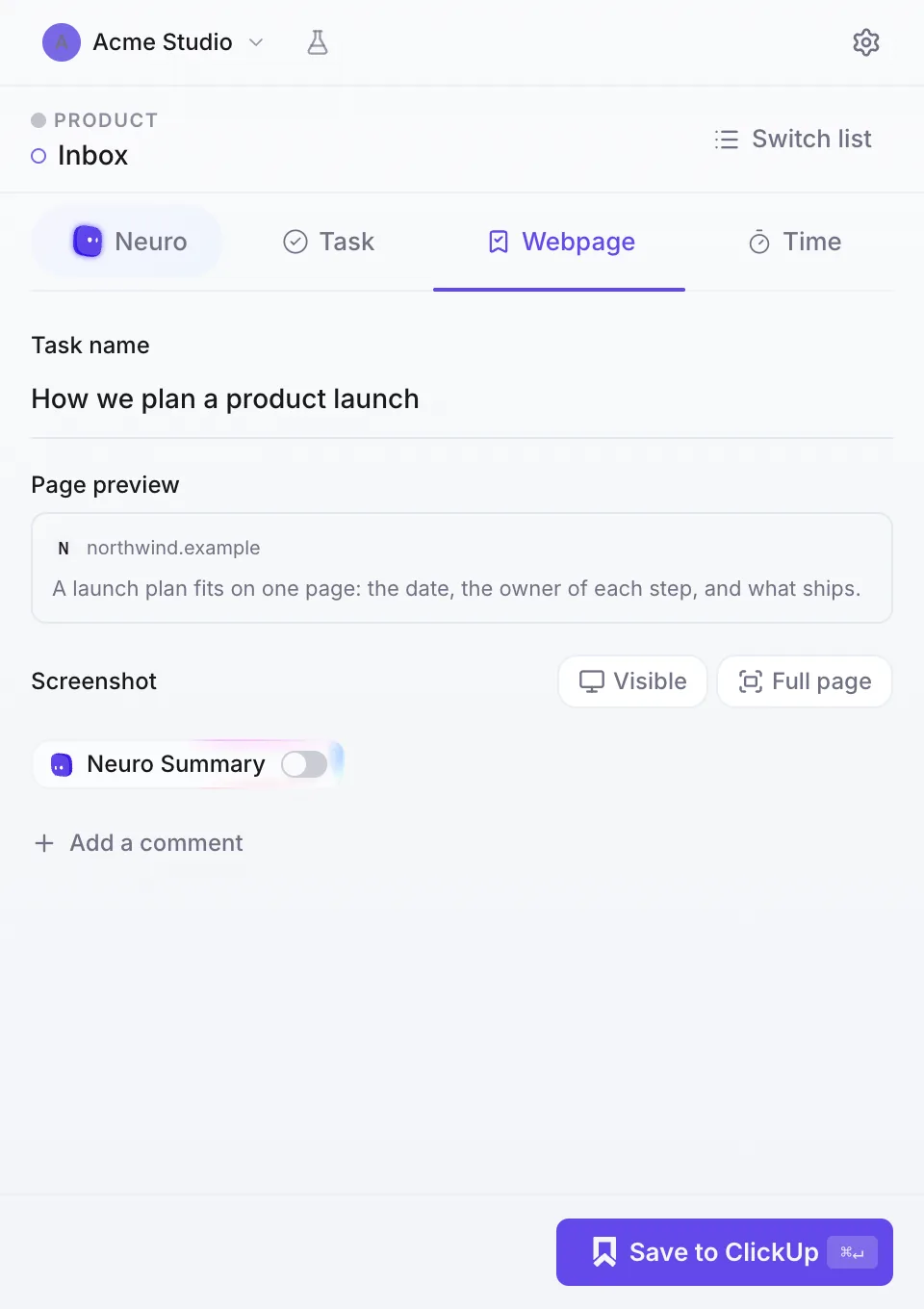
The task gets the page title, the URL and the full article body as clean text. The extension strips out menus, ads and sidebars and keeps the article. You can read it later on your phone from the ClickUp app, even if the source has gone behind a paywall since.
If you only need the link, the official ClickUp extension does that fine. It saves the URL to a task.
Save a screenshot to a ClickUp task
A screenshot is the fastest way to report a bug, keep a design you liked, or prove what a page said on a given day.
- Open the side panel on the page.
- Choose the visible area, or the full page.
- Attach it to a new task, or to the page you're saving.
The full-page capture scrolls the whole page for you, so nothing gets cut off at the bottom of the screen. The image goes straight to ClickUp. There's no file in your Downloads folder to find and upload again.
Create a task from any tab
Sometimes there's nothing to clip. You just remembered something while reading, and you want it in ClickUp before it's gone.
The side panel has a task form on every tab: name, description, a comment and a screenshot if you want one. Pick the list and submit. You never open ClickUp to do it.
Save an email to ClickUp
Email is where a lot of ClickUp work starts. A client asks for a change, and the ask sits in Gmail until someone retypes it as a task.
Open the side panel on the email, in Gmail or Outlook. Neuro, the AI assistant in the extension, reads the email, names the task after the ask, writes the note and suggests the list it belongs in. You can edit any of it before you save. The email and the task stay linked, so when that thread comes back, you can jump straight to the task.
Neuro is the one part that isn't free forever. You get 50 free AI credits for 7 days, email included. After that, the Task Plan costs $6.90 a month per seat at the founding-member price ($9 list), and the Workspace Plan, which adds email triage across your inbox, costs $14.90 ($19 list). The pricing page has the current numbers. Saving pages, screenshots, tasks and time stays free.
Log time while you're at it
If the thing you saved is work you're about to do, you can track it from the same panel. Press play on a task and ClickUp's own timer starts, so it shows in ClickUp right away and you can stop it from either side. You can also type in a start and an end, with notes, tags and billable, the way ClickUp's own time form works.
Picking a route
- You only ever need the link. The official ClickUp extension is enough.
- You want to keep a list of links inside a Doc. Save Links to ClickUp does that one job.
- You want the page itself, a full-page screenshot, or emails turned into tasks. Install Save to ClickUp. It's free on Chrome, Firefox and Edge, and you sign in with your ClickUp account.
We built it at UpSys, a ClickUp Verified Consulting Partner, because we kept losing pages we'd saved as bare links on client work. What you save goes straight into your ClickUp account.
FAQ
Can I save a whole webpage to ClickUp instead of the link?
Yes. Save to ClickUp saves the page title, the URL and the full article body into the task. The official ClickUp extension saves the URL.
Can I save to ClickUp from Firefox or Edge?
Yes. Save to ClickUp is free on Chrome, Firefox and Edge, and it runs on most other Chromium browsers too.
Does saving to ClickUp cost anything?
Saving webpages, screenshots, tasks and time is free. Only the AI assistant, Neuro, costs money once its 50 free credits run out.
Can I save to more than one ClickUp workspace?
Yes. The side panel opens with a workspace picker and then a list picker for that workspace. You can switch at any time.
Will the official ClickUp extension stop working if I install this one?
No. The 2 extensions don't clash, and you can keep both installed.