You want ClickUp in your browser so you can turn a page, a screenshot or an email into a task without opening ClickUp. Which extension you get depends on the browser you use. Most guides skip that part.
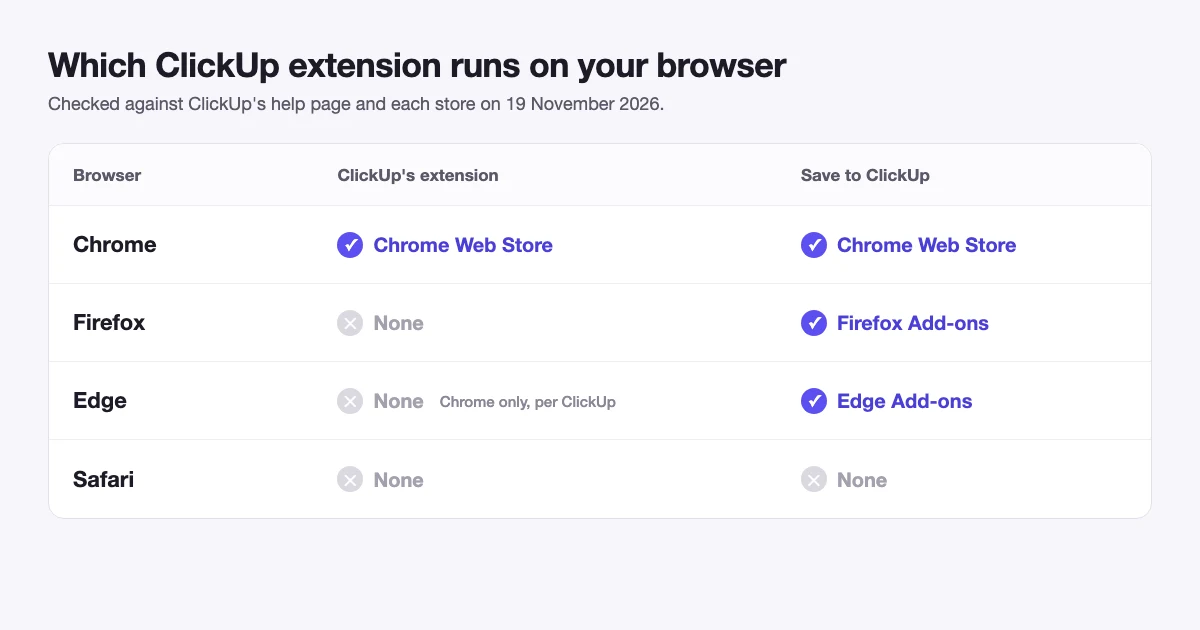
ClickUp makes one extension. It only runs on Chrome. Save to ClickUp, which we make, runs on Chrome, Firefox and Edge. Here's what each one does, checked against ClickUp's help page and both store listings on 19 November 2026.
ClickUp extensions by browser
| Browser | ClickUp's extension | Save to ClickUp |
|---|---|---|
| Chrome | Chrome Web Store | Chrome Web Store |
| Firefox | None | Firefox Add-ons |
| Edge | None (ClickUp supports Chrome only) | Edge Add-ons |
| Safari | None | None |
ClickUp's help page is direct about it: "The Chrome extension is only available for the Google Chrome browser." A search for ClickUp on Firefox Add-ons turns up nothing from ClickUp. On Safari, neither extension exists, so the ClickUp web app or desktop app is the way in.
Features side by side
Both put tasks into ClickUp from any tab. Past that, they don't save the same things.
| ClickUp's extension | Save to ClickUp | |
|---|---|---|
| Save a page | Title and link as a task, screenshot optional | Title, link and the full article text, screenshot optional |
| Screenshot | Visible window or a dragged area, with markup | Visible tab or the full scrolling page, no markup |
| New task from any tab | Title, assignees, due date, description | Name, description, comment, screenshot |
| Gmail | Gmail and Outlook, with an AI that drafts the task | |
| Time | Start a timer on a task from the extension | ClickUp's timer, started by hand or on its own when you open a task |
| Inside ClickUp | Nothing | Boosters that hide the parts of ClickUp you don't use |
| Notepad | Yes | No |
| Store rating | 1.9 out of 5, 386 ratings | 4.2 out of 5, 10 ratings |
| Last updated | 25 August 2025 | 19 November 2026 |
| Price | Free on every ClickUp plan | Free, AI paid after the trial |
A word on those ratings. 386 ratings is a real sample. 10 isn't, so read ours as early, not proven. The dates matter more. ClickUp's listing hadn't changed in about 15 months when we checked.
Install ClickUp's extension on Chrome
- Open ClickUp's listing in the Chrome Web Store and click Add to Chrome.
- Click Add extension in the popup.
- Click the ClickUp icon in the toolbar and sign in.
- Pick the workspaces the extension can use.
From the icon you get tabs for a new task, a bookmark, screenshots, time and a notepad.
Install Save to ClickUp on Chrome, Firefox or Edge
- Open the store for your browser: Chrome, Firefox or Edge.
- Add it to the browser.
- Click the icon. A side panel opens on the right.
- Sign in with your ClickUp account, then pick the workspace and the list.
The panel remembers the last list you used. Open ClickUp in another tab and you'll see the Boosters and the time tracking there too, from the same install.
Save to ClickUp keeps the article text
We built it for one gap: the saved link. A bare URL only works while the page stays the same. Posts get edited, prices change, and articles go behind a login. Save to ClickUp pulls the readable text out of the page with Mozilla Readability, the engine behind Firefox's reader view, and puts it in the task as clean text. You can read it on your phone in ClickUp next month, whatever happened to the page.
The full-page screenshot works the same way. It scrolls the page, joins the parts into one image and sends it to the task. ClickUp's extension stops at the bottom of your window.
In Gmail or Outlook, Neuro, the AI in the side panel, reads the email, names the task after the ask and suggests the list. The email and the task stay linked. Neuro starts with 50 free AI credits for 7 days. After that it's a paid plan, priced per seat on the pricing page. Saving pages, screenshots, tasks and time stays free.
Save to ClickUp's limits
Save to ClickUp has no area select and no markup on screenshots, so for a cropped image with arrows on it, ClickUp's extension is better. It has no notepad either. There's no Safari version. It's also small next to ClickUp's: 4,000 users on Chrome against 200,000.
Pick by browser and job
- You're on Chrome and want marked-up crops. ClickUp's extension. Add Save to ClickUp next to it if you also want full pages and article text. They don't clash.
- You're on Firefox or Edge. Save to ClickUp, since ClickUp doesn't make one for those browsers.
- You file Outlook email into ClickUp from the browser. Save to ClickUp. The help page for ClickUp's extension only names Gmail.
- You're on Safari. Neither. Use ClickUp's web or desktop app.
For the step-by-step on each kind of save, our guide on saving webpages, emails and screenshots to ClickUp walks through all 4 routes. The ClickUp screenshot guide compares the capture modes in detail.
FAQ
Does ClickUp have a browser extension?
Yes, one, for Google Chrome. It saves tasks, bookmarks, screenshots, Gmail emails and time to ClickUp. It's free on every ClickUp plan.
Is there a ClickUp extension for Firefox?
Not from ClickUp. Save to ClickUp is on Firefox Add-ons and does the same core jobs: pages, screenshots, tasks, email and time.
Is there a ClickUp extension for Edge?
ClickUp's help page says its extension is for Google Chrome only. You can get Save to ClickUp from Edge Add-ons.
Is there a ClickUp extension for Safari?
No. Neither ClickUp nor Save to ClickUp has a Safari version. Use the ClickUp web app or the desktop app.
Can I install both extensions at once?
Yes. They don't clash, so you can use ClickUp's for marked-up screenshots and Save to ClickUp for full pages and email.
Is the ClickUp browser extension free?
ClickUp's extension is free on every plan. Save to ClickUp is free for pages, screenshots, tasks and time. Only Neuro, its AI, costs money once the free credits run out.